The Categories module keeps your content organised and easy to find.
It defines the structure behind posts, navigation and URLs so your site stays clear
for both editors and visitors.
What the Categories module is for
The Categories module is where you define the main sections of your website.
Categories group related content and give it a logical place inside your structure,
whether you manage blog posts, product pages or use case articles.
Each category has a clear name, slug and language, which makes URLs predictable
and navigation consistent. Together with
Posts and Menus,
categories form the backbone of your public site.
Define clear sections for posts, products, company pages or use cases.
Keep category slugs consistent for clean and readable URLs.
Separate content by language without mixing translations.
See how many posts belong to each category at a glance.
Compact table view for all categories
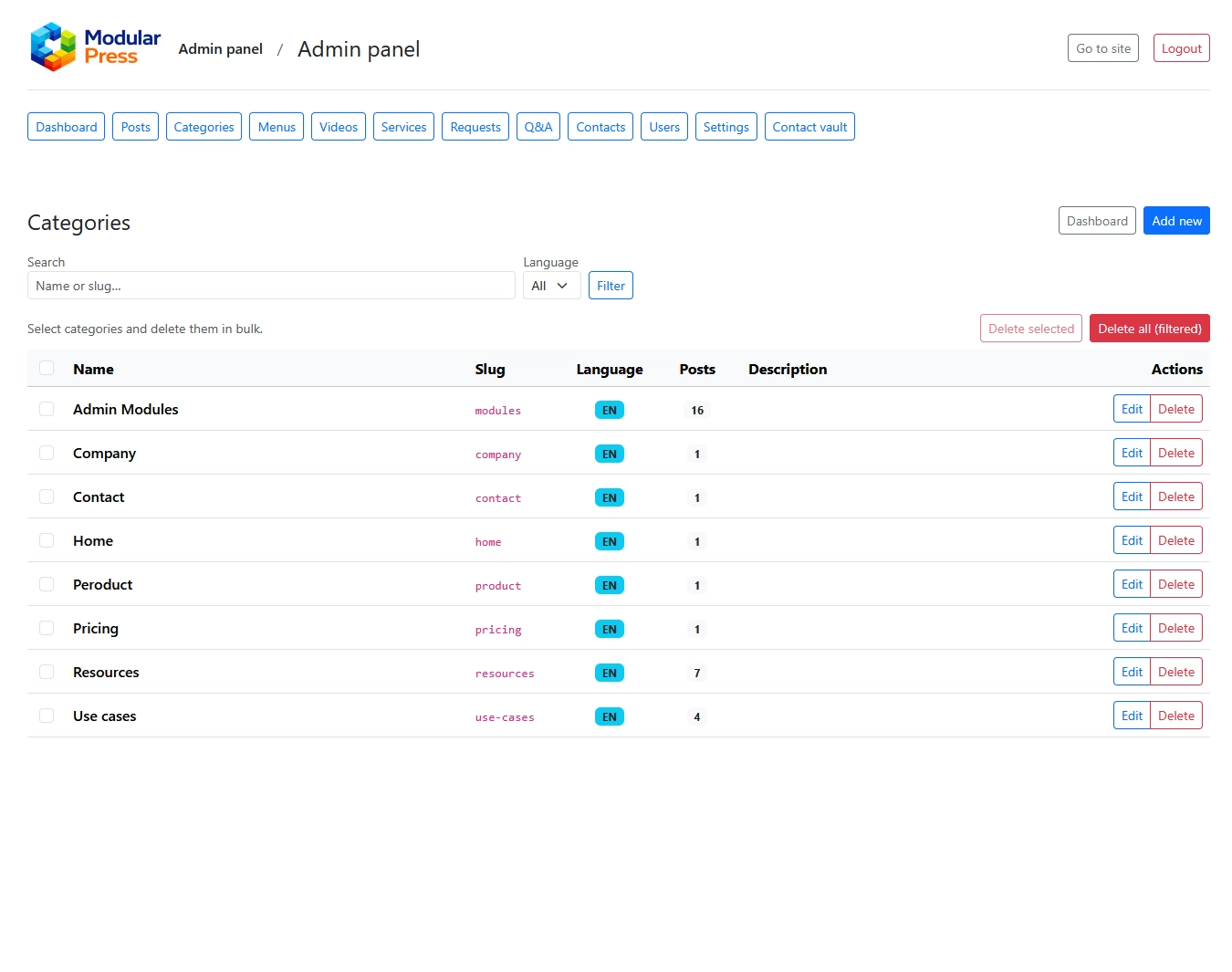
The main Categories screen shows a clean table with category name, slug,
language, description and the number of related posts.
Everything important is visible without opening each item.
A built in search helps you quickly find categories by name or slug,
which is especially useful on larger sites with many sections.
Language aware content structure
Each category belongs to a specific language.
This allows you to keep English, Bulgarian and other languages separate
while working in a familiar and predictable admin layout.
You can reuse the same concept across languages while adapting slugs
for better local SEO and readability.
Clean and focused edit screen
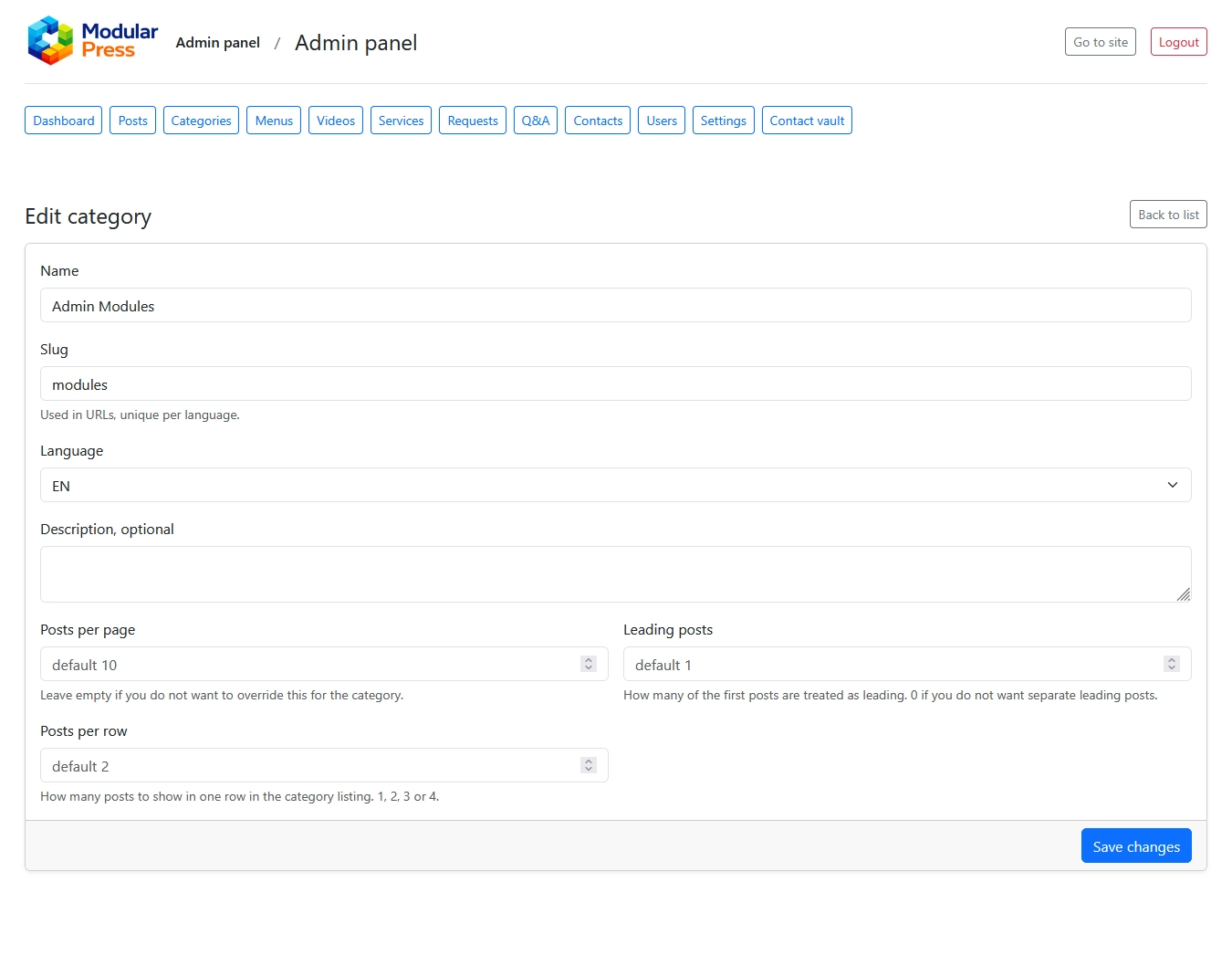
The Edit category screen includes only the fields you actually use:
name, slug, language, optional description and layout settings.
There is no visual noise or hidden options.
Helper texts explain how each field affects the public site,
which reduces mistakes and keeps the structure stable over time.
Predictable listing layout
Categories let you control how many posts appear per page
and how many are displayed per row.
This keeps visual consistency without changing templates.
Default values work for most sections,
while special landing pages can override the layout when needed.
Safe housekeeping
Bulk actions are available for cleanup but are clearly separated
from everyday editing actions.
This helps avoid accidental deletions during routine work.
Before removing a category you can quickly see how many posts it contains
and decide whether to move or archive them.
Typical workflows
Create categories before editors start writing new content.
Split large categories into smaller focused sections.
Align category names with main menu structure.
Review unused categories and clean them up regularly.
Categories module in action
The screenshots below show the Categories list and the Edit category screen.
Click on an image to view it in full size.
Categories list view with name, slug, language and number of posts.
Edit category screen with core fields and layout settings.