The Contacts module keeps all important company details in one place.
Phone numbers, emails, office hours and social links are managed in a small
structured table and reused across the whole website together with navigation
from the Menus module.
What the Contacts module is for
The Contacts module is the single source of truth for visible company details.
Instead of hardcoding phones and emails in templates, you keep them as records here
and the frontend reads from the same clean list for headers, footers and contact sections.
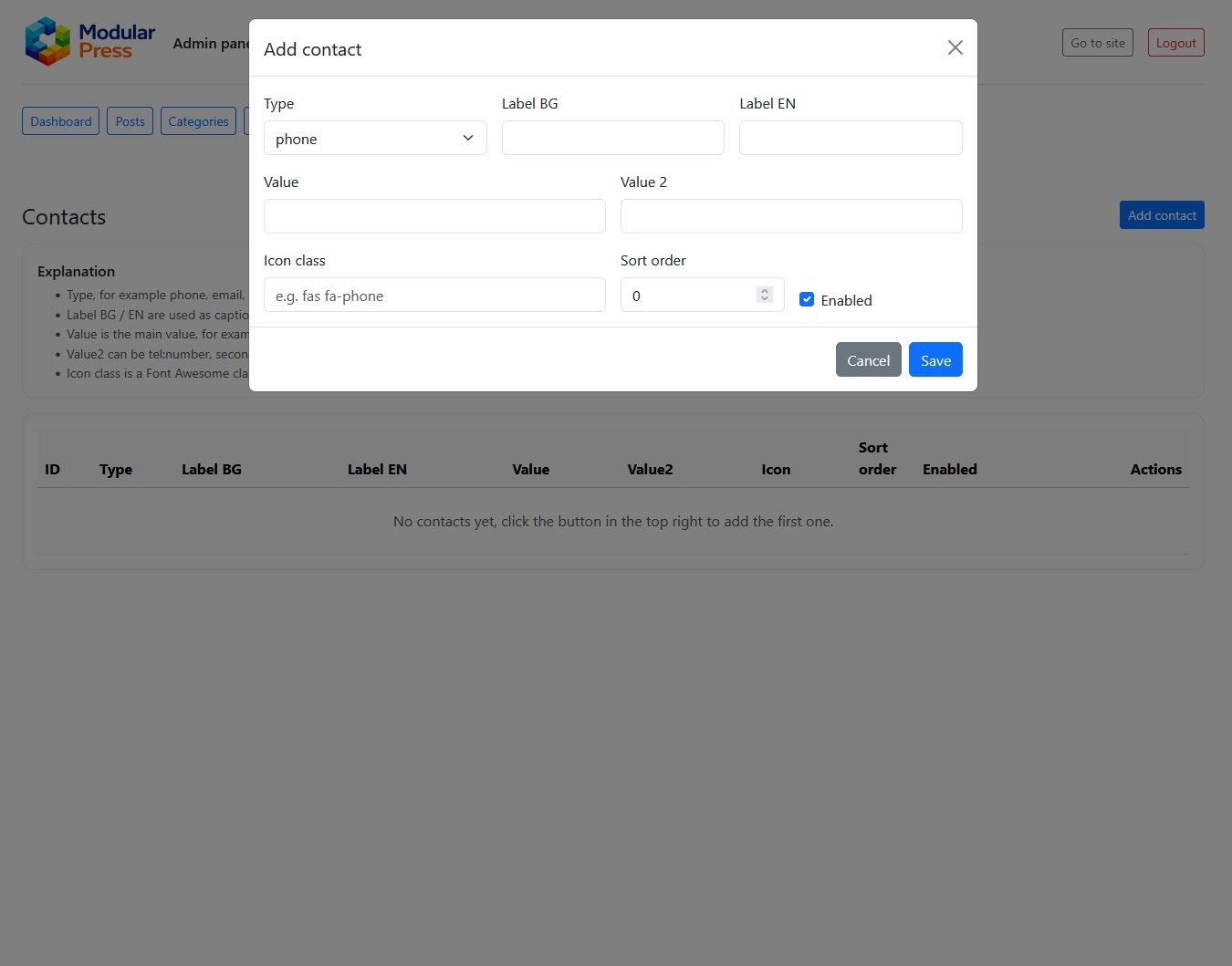
Each contact entry has a type, labels per language, a main value and an optional
secondary value. You can also add an icon class that matches your design system,
for example a phone icon, map pin or social network logo.
Store phones, emails, addresses and social links in a structured table.
Use different labels per language while keeping one shared value.
Control sort order and visibility without touching the code.
Attach icons via Font Awesome classes for a consistent UI.
Clear table for all contact points
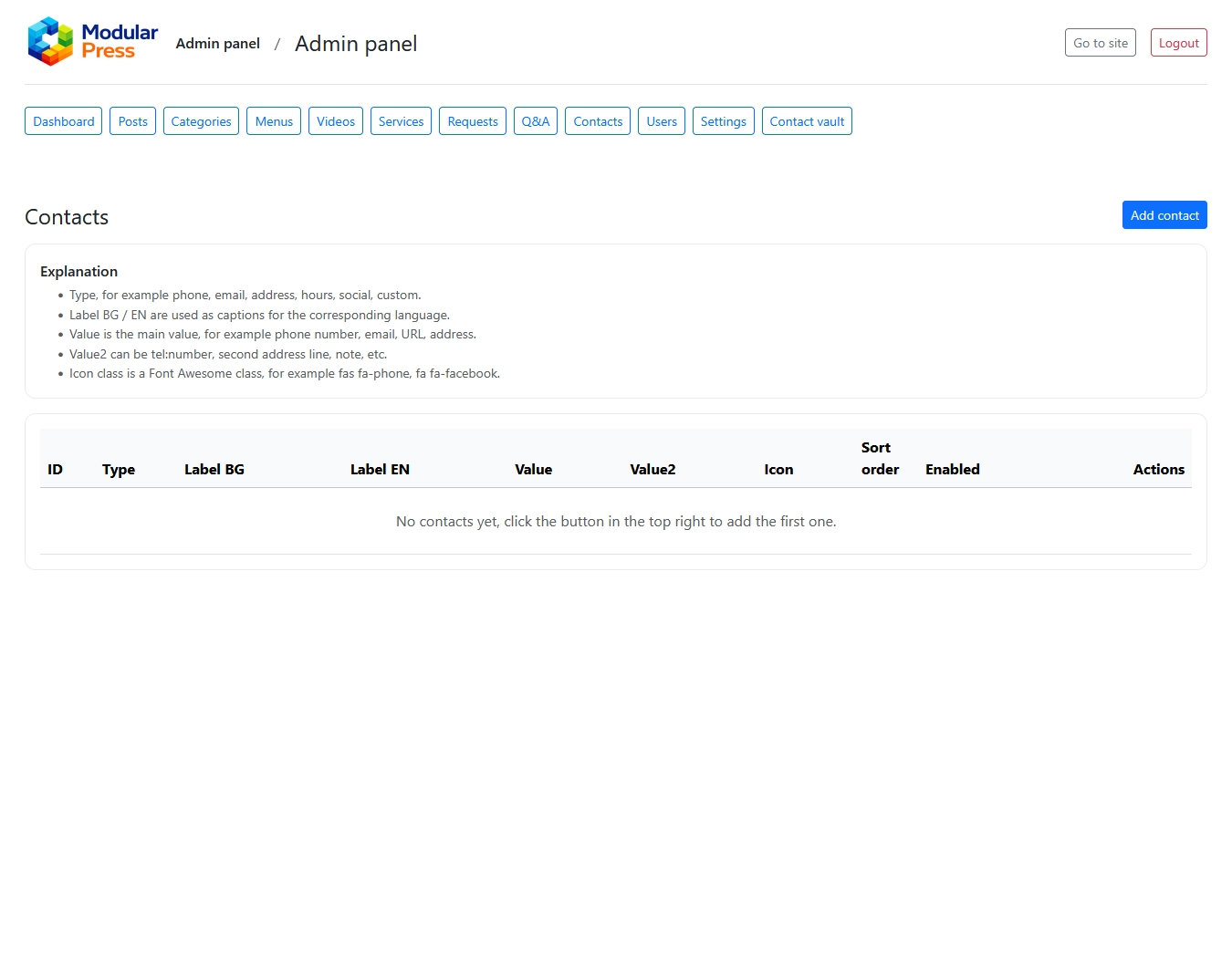
The main screen shows a compact table with every contact entry.
You see ID, type, labels per language, value, optional value2, icon class,
sort order and enabled status in one place.
This overview makes it easy to check what is visible on the site and
to spot missing details, such as an address without working hours.
Flexible types for different channels
Contacts are grouped by type such as phone, email, address, hours, social or custom.
The type is stored as a simple text value so you can extend it
without changing the database schema.
Templates can render different types in different places,
for example phone and email in the header or social links in the footer.
Labels per language, shared value
Each entry has label fields for every active language.
The labels are what visitors see, while the underlying value stays shared.
Editors can localise copy without touching phone numbers,
email addresses or URLs.
Main value and secondary line
The Value field holds the primary information,
such as a phone number or email address.
The optional Value2 field can hold a second address line,
extension number or short note.
Icon classes and sort order
Each contact can include an icon class,
typically a Font Awesome icon like fas fa-phone.
Sort order is controlled by a numeric field,
so the most important contacts appear first.
Enable and disable without deletions
Contacts can be enabled or disabled without deleting them.
This is useful for seasonal phones or temporarily closed offices.
Disabled entries stay in the system for future reuse.
Contacts module in action
The screenshots below show the main Contacts list and the Add contact dialog.
Clicking an image opens a full size preview.
Contacts list showing all records with type, labels, values and status.
Add contact dialog with all fields on a single screen.