The Users module is the center of your admin security.
Here you create accounts, assign roles and control who can see and edit every part
of the system without touching the database or the server.
What the Users module is for
The Users module is the place where you manage everyone who has access to the admin panel.
It is designed to stay simple for small teams and still work comfortably when you have
tens of editors, authors or external partners.
Each account has a clear status, one or more roles and a full history for creation
and updates. There is no hidden magic. You always see why a user has access and what
changed in time. Together with core modules like
Menus and Settings
it defines who can change the structure and configuration of your sites.
Create and edit admin accounts without technical access to the database.
Assign multiple roles per user, for example admin, author, editor or viewer.
Deactivate access without deleting accounts or losing history.
Filter and search users by name, email or status in seconds.
Clean list view for all accounts
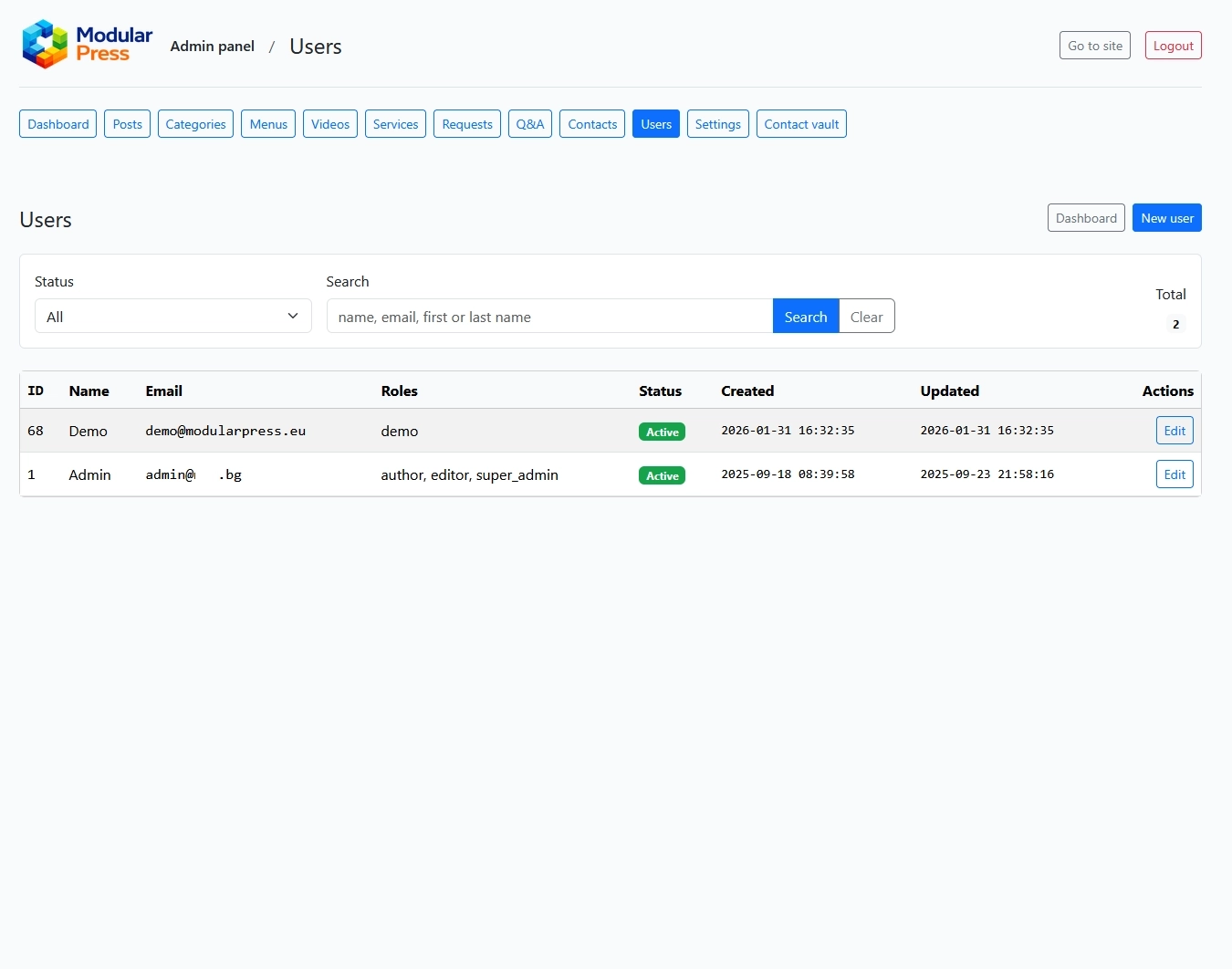
The main Users screen shows a compact table with every account in the system.
You see ID, display name, email, assigned roles, status plus timestamps for
when the user was created and when it was updated.
The status filter lets you switch between all users or only active accounts.
The search field supports name, email, first or last name in a single query.
This is very helpful when the team grows and you have tens of accounts.
Role based access control
Instead of one global super admin you work with roles.
Every user can have one or more roles that define what they see and what they can change.
For example author, editor, admin, super_admin or fully custom roles that you define.
Permissions are attached to roles, not directly to users.
This keeps sensitive modules like
Settings or
Contact vault
limited to a small group while editors and authors work only with
posts, pages,
menus or media.
Safe activation and deactivation
When someone leaves your team or an external partner finishes a project you do not have
to delete their account. You can simply uncheck the Active status.
The login is blocked but all linked content and history remain intact.
This is useful for audit trails, security reviews and seasonal staff who return later.
You reactivate the same account without creating duplicates.
Editing users without risk
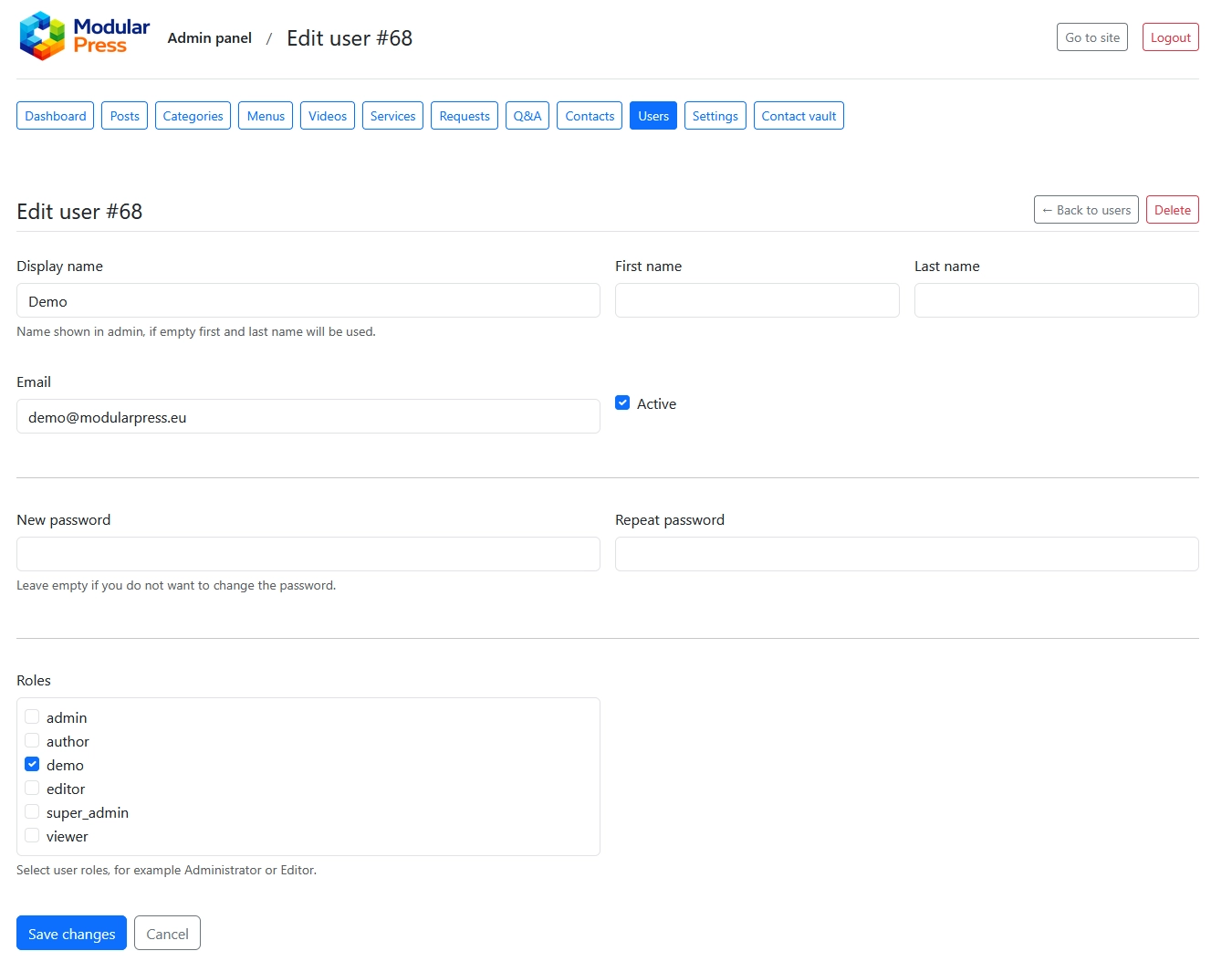
The edit screen is intentionally clean.
You see the display name, optional first and last name fields, the email,
password fields and the list of roles on one page.
Password fields are always empty when you open the form so you do not accidentally
override passwords while changing roles or contact details.
The Active checkbox stays visible next to the email which makes the current status obvious.
Search, filters and totals
Above the table you have a status dropdown, a search box and a live counter for
the total number of users.
The layout is fixed and predictable so you always know where the controls are,
even when you switch between modules or screens.
This makes regular access reviews much easier, for example monthly checks of all
active admins or quick reports for your security team.
Typical workflows
Onboard a new colleague by creating an account and assigning roles in one step.
Give restricted access to external agencies via a dedicated "demo" or "viewer" role.
Pause an account when someone is on leave instead of deleting it.
Review all super_admin accounts during regular security checks.
Users module in action
The screenshots below show the main Users list and the Edit user screen.
Clicking on a screenshot opens a full size preview in a popup overlay.
Users list view with filters for status and search, plus a table for ID,
name, email, roles, status and timestamps.
Edit user form with display name, email, Active toggle, password fields
and a clear list of roles such as admin, author, editor or super_admin.